 Hearsay
 Connect Hearsay to your AI app and run your surveys from the chat: draft a survey from a sentence, change it, publish it, and ask what customers said. In apps that support it, surveys, share links and results show up as interactive cards.
Every plan can connect, Free included.
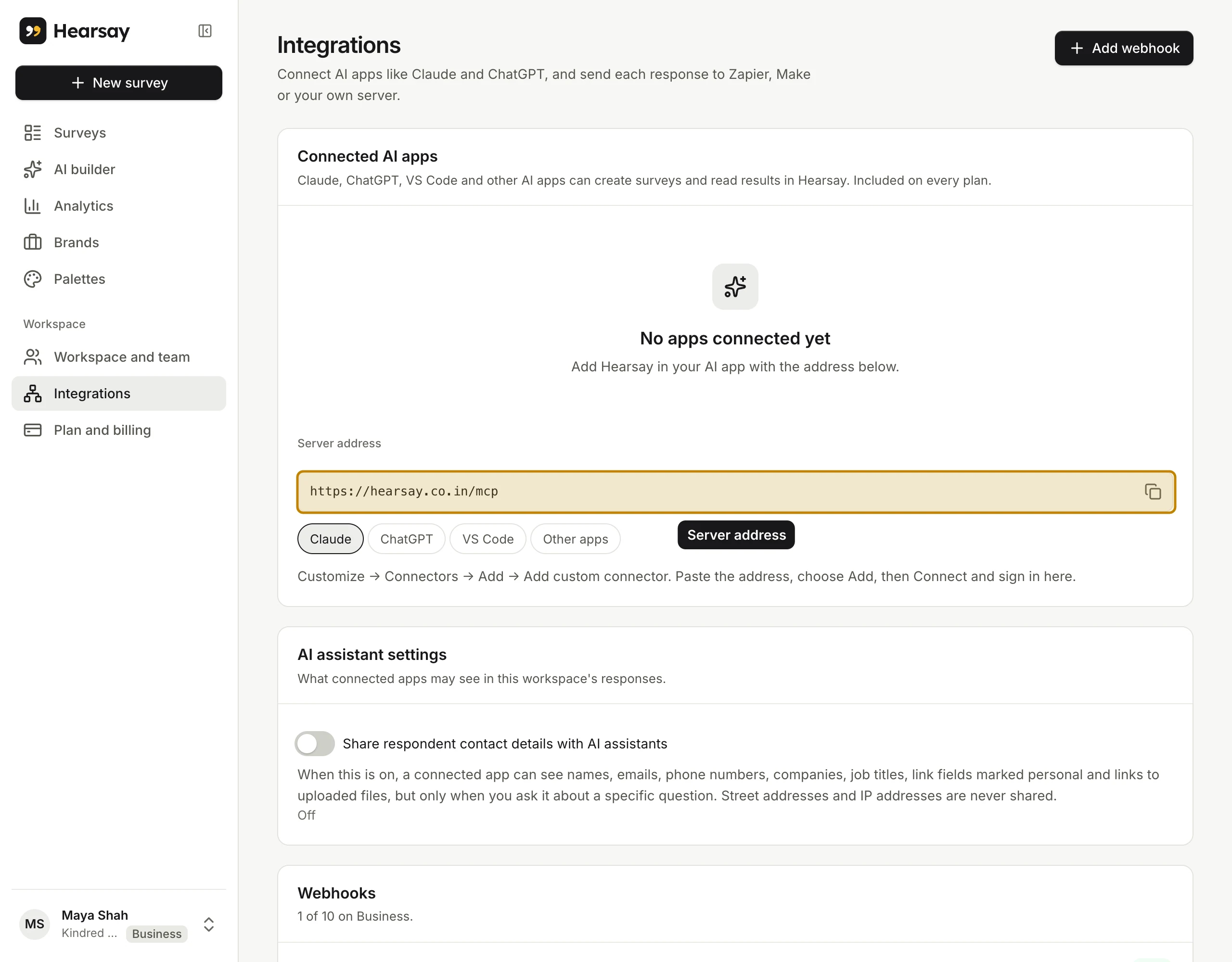
The server address
Every app connects to the same address:
https://hearsay.co.in/mcp
You'll also find it on the Integrations page under Server address, with a button to copy it and short steps for each app.
Claude
On claude.ai or the Claude desktop app:
- Open Customize → Connectors.
- Choose Add → Add custom connector.
- Name it Hearsay, paste the server address and choose Add.
- Choose Connect and sign in to Hearsay. Then choose a workspace.
Claude on iPhone and Android uses the connectors you added on the web or desktop; it can't add one itself.
On Claude's Team and Enterprise plans, an owner adds the connector for the organization first. Then each person connects their own Hearsay account.
ChatGPT
In ChatGPT on the web (Plus or higher):
- Open Plugins.
- Choose Add → Add custom MCP server.
- Name it Hearsay and paste the server address. Keep OAuth, confirm, and choose Create as a plugin.
- Choose Connect and sign in to Hearsay. Then choose a workspace.
In a chat, ask for Hearsay by name, or pick it from the + menu.
VS Code
In VS Code with GitHub Copilot:
- Run MCP: Add Server from the Command Palette.
- Choose HTTP, paste the server address and name it
hearsay. - VS Code opens your browser to sign in to Hearsay.
To see the cards inside Copilot Chat, turn on the chat.mcp.apps.enabled setting. Without it you get the same answers as text.
Other apps
Any app that can add a remote MCP server with OAuth sign-in can connect, such as Cursor: add a server with the address. Apps without cards get a text answer for every step, with links to open the same page in Hearsay.
Choose a workspace and permissions
When your app sends you to Hearsay, sign in. New to Hearsay? Create an account and set up your workspace, and you come straight back here to finish.
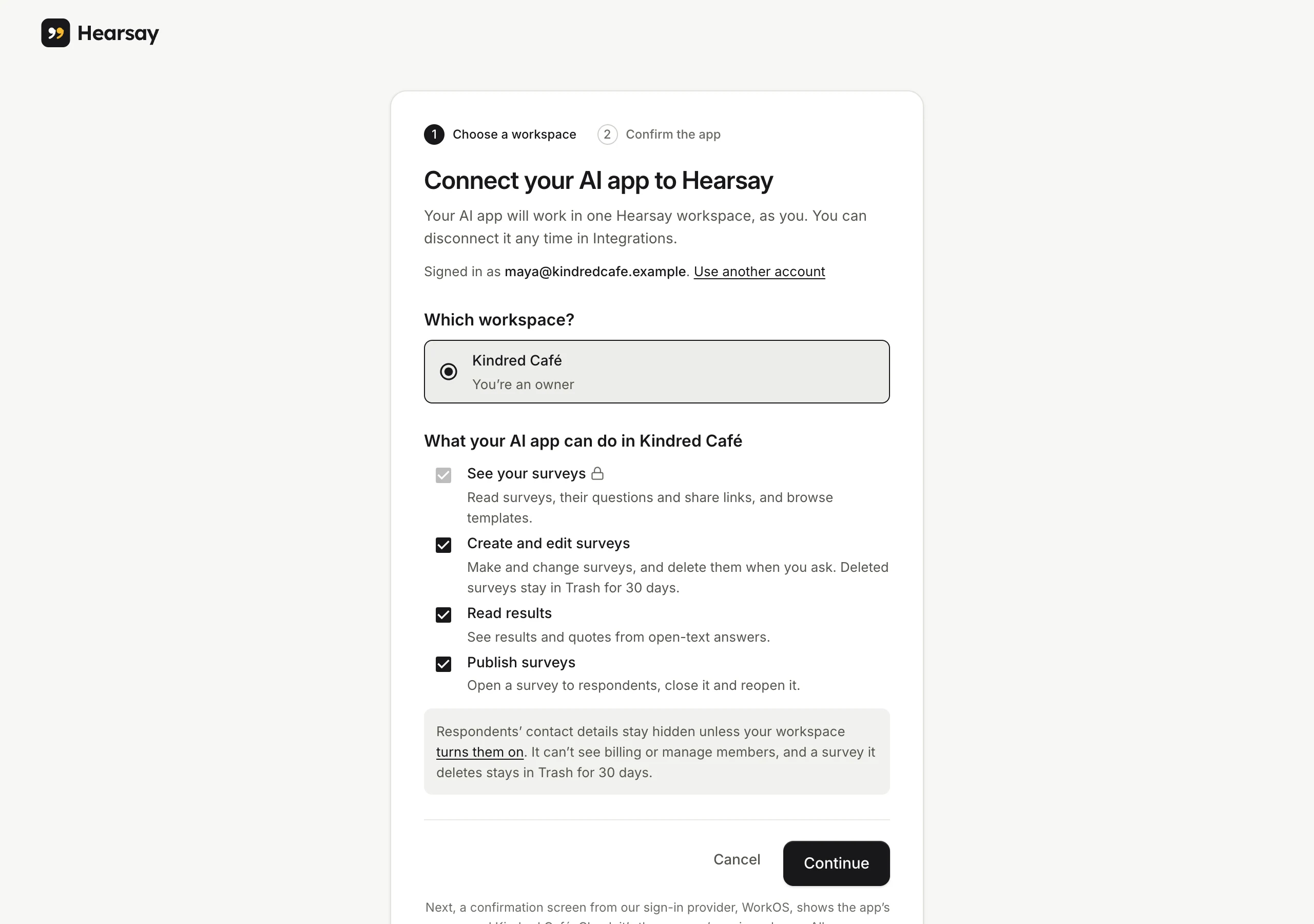
- Under Which workspace?, pick the workspace the app may use. Each one shows your role there. A connection only ever reaches the one workspace you pick.
- Under What [app] can do in [workspace], untick anything you don't want:
- See your surveys: always included.
- Create and edit surveys: make and change surveys, and delete them when you ask. Deleted surveys stay in Trash for 30 days.
- Read results: see results and quotes from open-text answers.
- Publish surveys: open a survey to customers, close it and reopen it.
- Choose Continue.
- A confirmation screen from our sign-in provider, WorkOS, shows the app's name and your workspace. Check it's the app you're using and choose Allow access. You're back in your app.
All four permissions start ticked. If you're a viewer in that workspace, only See your surveys and Read results are available, so the app can only read.
To use another workspace, connect again and pick it.
Try it
Ask in plain words, for example:
- "Make a short survey for customers who just picked up an order from our café: how was it, what should we add to the menu, and would they recommend us."
- "Make the recommend question 0–10 and add an optional email question at the end."
- "Publish it and give me a QR code for the counter."
- "How is the café survey doing this week? Compare Instagram with the counter QR code."
- "What did people who scored us 6 or lower complain about? Show me quotes."
- "Show me your post-purchase templates and start one for my shop."
You can also ask how to do something in Hearsay: the app can search these docs.
See What an AI app can do for the full list, and AI assistants and your data for what it sees and how to disconnect it.
If connecting fails
- This connection request has expired. Go back to your AI app and connect again. The sign-in took too long. Start again from your app.
- You have 50 connected apps. Disconnect some in Integrations, then try again. Remove ones you don't use under Connected AI apps.
- Opened
/connectyourself and see Start from your AI app? Connecting has to start in the AI app. Add Hearsay there, and it brings you back.