 Hearsay
 Open Analytics in the sidebar, or Analytics in a survey's More actions menu. Pick the survey at the top right. Charts refresh about once a minute.
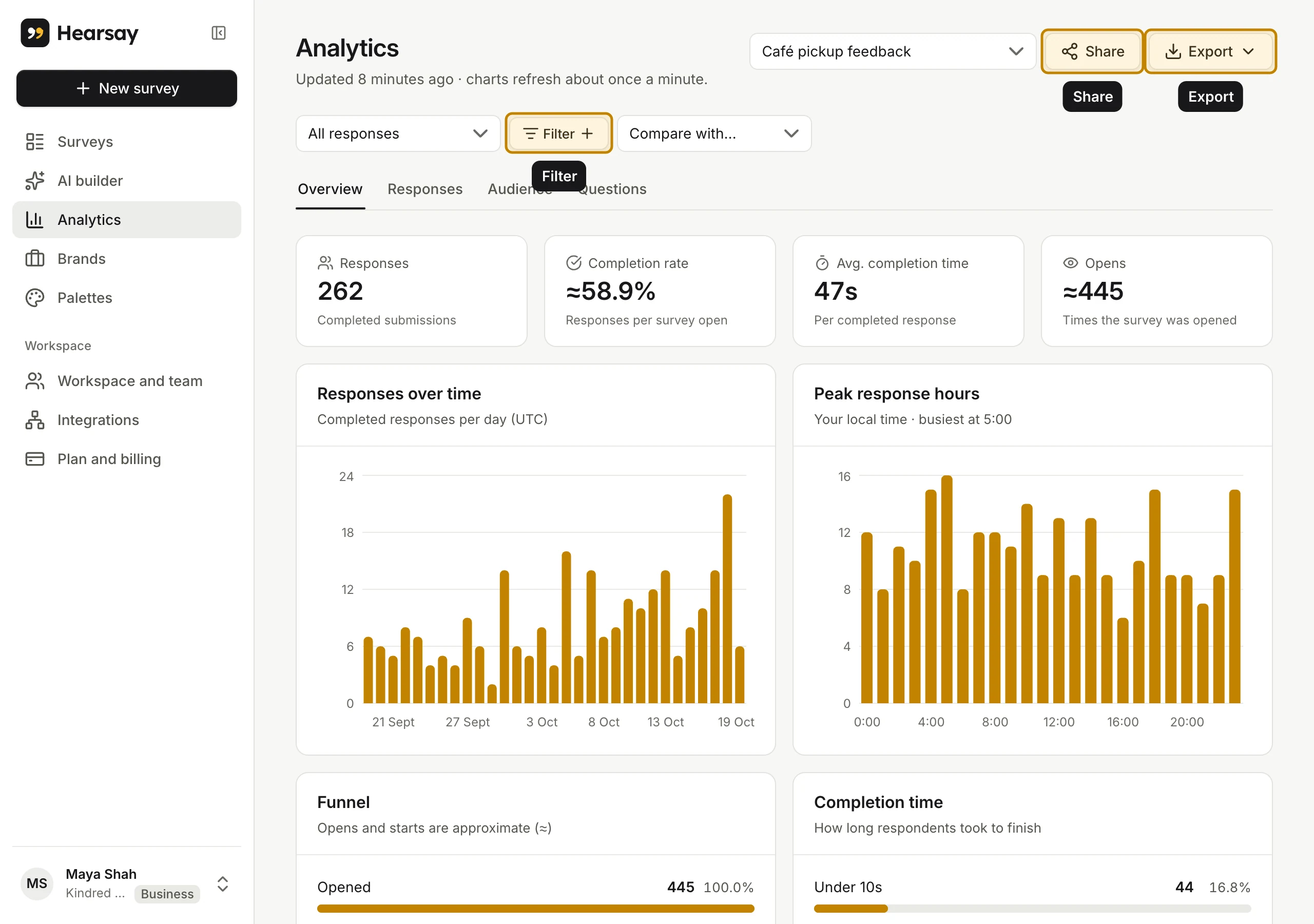
The page has four tabs: Overview, Responses, Audience and Questions. Above them, Filter narrows every chart to the responses you care about, and Compare with… puts two groups side by side. See Filter results and Save segments and compare groups.
Overview
The four numbers at the top:
- Responses: completed submissions.
- Completion rate: responses per survey open, shown with ≈ because opens are estimated.
- Avg. completion time: how long a completed response takes.
- Opens: how many times the survey was opened.
Then:
- Responses over time: completed responses per day (UTC), up to 90 days.
- Peak response hours: in your local time, so you know when customers answer.
- Funnel: Opened, Started answering and Completed.
- Completion time: how long people took, grouped.
- End screens and Page reach, if your survey has them: where people finished and how far they got.
- Traffic channels: opens, completions and conversion for each channel. See Survey links and channels.
Audience
Devices (phone, tablet, computer), Languages (from customers' browsers) and Link fields (the values passed in your links; personal fields aren't shown).
Questions and responses
- Questions has a card for every question, with its chart and numbers such as NPS. See Results for each question.
- Responses lists every response, newest first. See Read individual responses.
Share and export
- Share creates a read-only report page you can send to anyone. See Share a results report.
- Export downloads responses as CSV or Excel, or a printable PDF summary. See Export results.
Results for a survey you can't find
The survey picker lists the workspace's surveys with their response counts. If a link to a survey's results opens the wrong workspace, Hearsay switches to the right one for you, as long as you're a member of it.