 Hearsay
 Everything about the workspace's plan is on Plan and billing: in the sidebar under Workspace, or in the menu under your name.
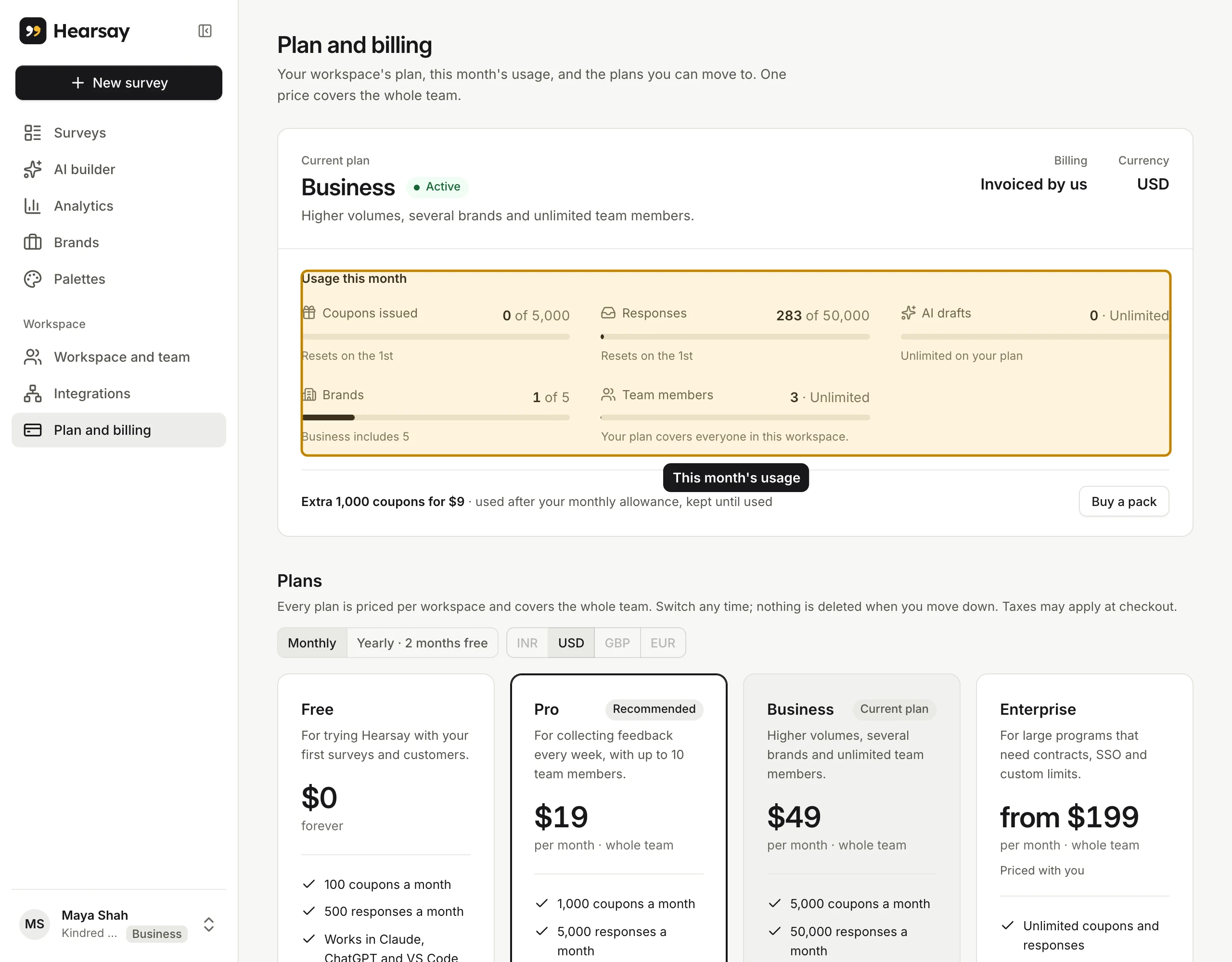
Owners and admins can change the plan and pay. Editors and viewers see the plan and this month's usage, with a note that the workspace's plan covers them, so they're never charged.
Payments go through Stripe. Hearsay never sees your card details.
Your plan and usage
Current plan shows the plan, whether it's Active, on Trial or has a Payment due, and when it renews.
Usage this month shows Coupons issued, Responses, AI drafts, Brands and Team members, each against what the plan includes. A meter says Approaching your limit at 80% and Used up for this month at 100%. See Monthly limits.
Currency
Prices are in INR, USD, GBP or EUR. Hearsay picks one from where you are; owners and admins can change it with the currency buttons above the plans.
Once you've paid for a plan, the workspace keeps that currency and the buttons are locked. To change it after that, write to support@hearsay.co.in.
Upgrade
- Under Plans, choose Monthly or Yearly · 2 months free.
- On the plan you want, choose Upgrade to Pro or Upgrade to Business.
- Pay with Stripe. You can enter a promotion code there if you have one.
Back in Hearsay you'll see Payment received. Your account is updated. The new limits apply straight away. If you close Stripe without paying, Hearsay says Checkout canceled. Nothing was charged.
If you already pay for a plan, Stripe asks you to confirm the change instead, and charges the difference for the rest of the period straight away.
Switch to a lower plan, or monthly and yearly
- To move down, choose Switch to Pro on its card.
- To change how often you pay, choose Switch to yearly or Switch to monthly on your current plan's card.
Stripe asks you to confirm. Moving to a cheaper plan, or from yearly to monthly, happens at the end of the period you've paid for. Until then, Plan and billing shows when the change happens.
Move to Free
- On the Free card, choose Move to Free.
- Confirm in Stripe.
Your plan keeps going until the end of the period you've paid for. Hearsay shows Your Pro plan ends on [date]. You’ll move to Free then; nothing is deleted. Changed your mind? Choose Keep my plan.
What happens when you move down
Nothing is deleted. What you have keeps working where it can, and the new plan's limits apply to what you add:
- Team members: if the plan includes fewer people than the workspace has, the most recently joined are paused until you upgrade. See Paused team members.
- Brands: existing brands keep working, but you can't add more.
- Webhooks: they stay listed under Integrations, but send nothing below Business. See Webhooks.
- Responses and coupons: the new plan's monthly allowance applies. If you've already used more this month, see Monthly limits.
- Features: anything the new plan doesn't include, such as exports or file uploads on Free, is no longer available. Surveys that use a feature your plan doesn't include can't be published again until you remove it. See Publish a survey.
Buy a coupon pack
Need more coupons in a busy month? On Pro and Business, owners and admins can buy 1,000 extra coupons for ₹299, $9, £7 or €8.
- On Plan and billing, next to Extra 1,000 coupons, choose Buy a pack.
- Pay with Stripe.
Pack coupons are used after your monthly allowance runs out, and kept until they're used: they don't expire at the end of the month. The Coupons issued meter shows how many extra coupons you have. See Coupon limits, bot checks and running out.
Cards, invoices and billing details
Once you pay for a plan, owners and admins see Manage billing. Choose it to open Stripe, where you can:
- change your card;
- see and download invoices;
- change the billing name, email, address or tax ID;
- cancel, which moves you to Free at the end of the period.
If a payment fails
The plan shows Payment due, and Hearsay says Your last payment didn’t go through. Update your card to keep Pro. (or your plan). Choose Update payment method and add a working card.
If your bank asks you to approve a payment, Hearsay says Your bank needs you to confirm the latest payment. Choose Confirm payment.
Your plan keeps working while Stripe tries the payment again. If it can't be taken in the end, the workspace moves to Free. Nothing is deleted.
Paid, but still on the old plan
Hearsay usually updates within a few seconds. If it says Your payment went through, but your account hasn’t updated yet, refresh in a minute. If it still hasn't changed, write to support@hearsay.co.in.
Ask about Enterprise
- On the Enterprise card, choose Contact us.
- In Talk to us about Enterprise, fill in Your name, Work email, Company, Where you sell, roughly how many Responses a month, and optionally What do you need?
- Choose Send request.
We reply within one business day. Only owners and admins can send the request; others can write to support@hearsay.co.in.
Refunds
Payments aren't refundable, except where the law says otherwise. See our terms.