 Hearsay
 A shared report is a read-only web page with a survey's results. People open it without signing in, and it stays up to date. Shared reports are on Pro and above.
Create a report
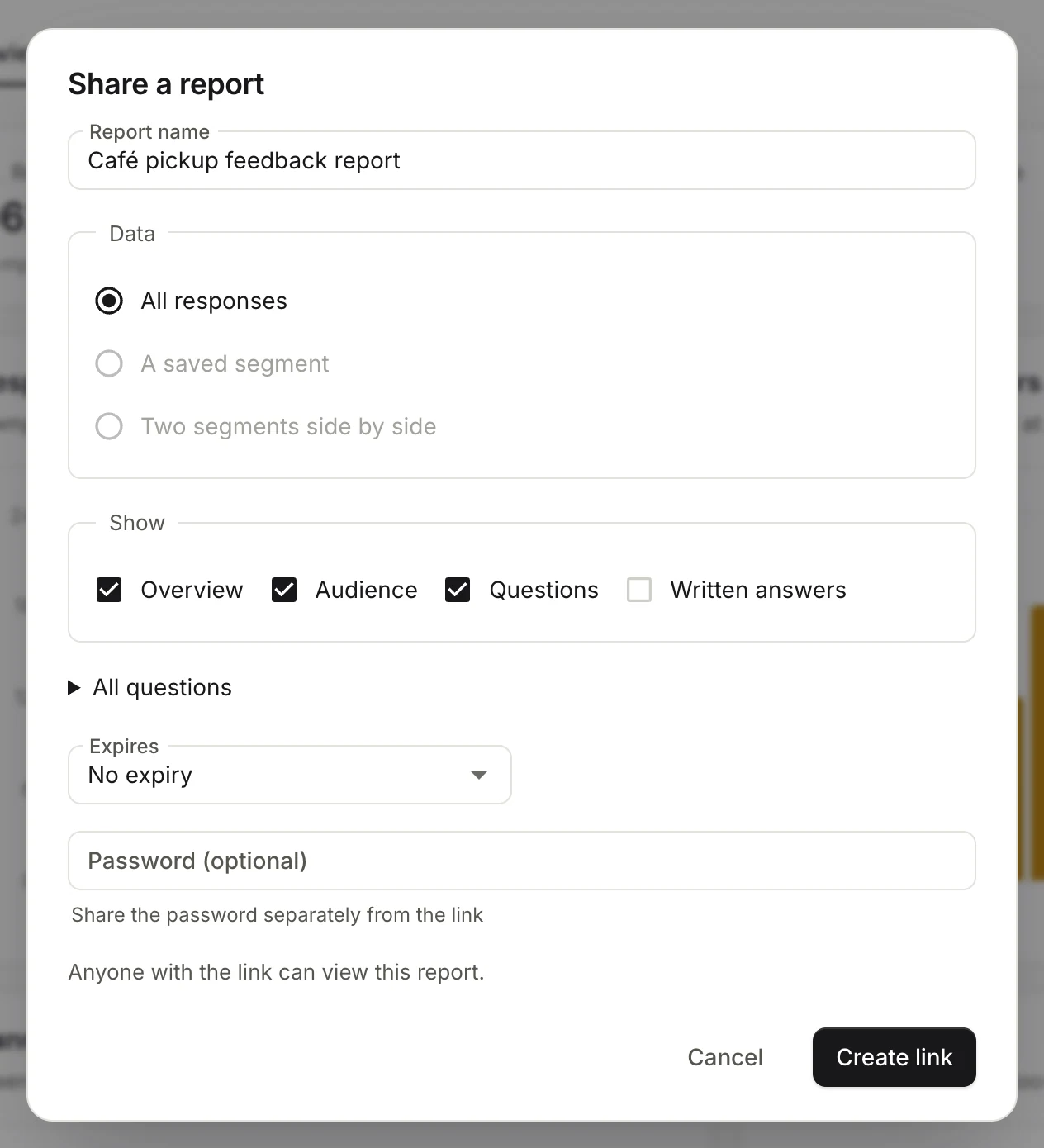
- On the Analytics page, choose Share.
- Give it a Report name (up to 80 characters).
- Under Data, choose All responses, A saved segment, or Two segments side by side.
- Under Show, pick the sections: Overview, Audience, Questions, Written answers. Then pick which questions to include.
- Set Expires: No expiry, in 7, 30 or 90 days, or On a date… up to a year ahead.
- Optionally set a Password (at least 8 characters). Send it separately from the link.
- Choose Create link, then Copy link.
What people see
The report shows your logo, the report and survey names, the filter or segments it covers, when it was updated, and the sections you chose. People can Print it. With a password, they see This report is protected first.
Shared reports never include contact details, uploaded files, coupon codes, references, page addresses or link field values.
Manage reports
The Shared reports list shows each report's status (Live, Expired or Revoked), whether it has a password, how many times it was viewed, and when it expires. Choose Copy link to send it again, or Revoke to turn it off. Copies people already have open can take up to a minute to stop working.
You can have 5 live shared reports on Pro, 50 on Business, and unlimited on Enterprise.