 Hearsay
 Open Analytics, pick the survey and choose the Responses tab. Responses are listed newest first, 25 to a page.
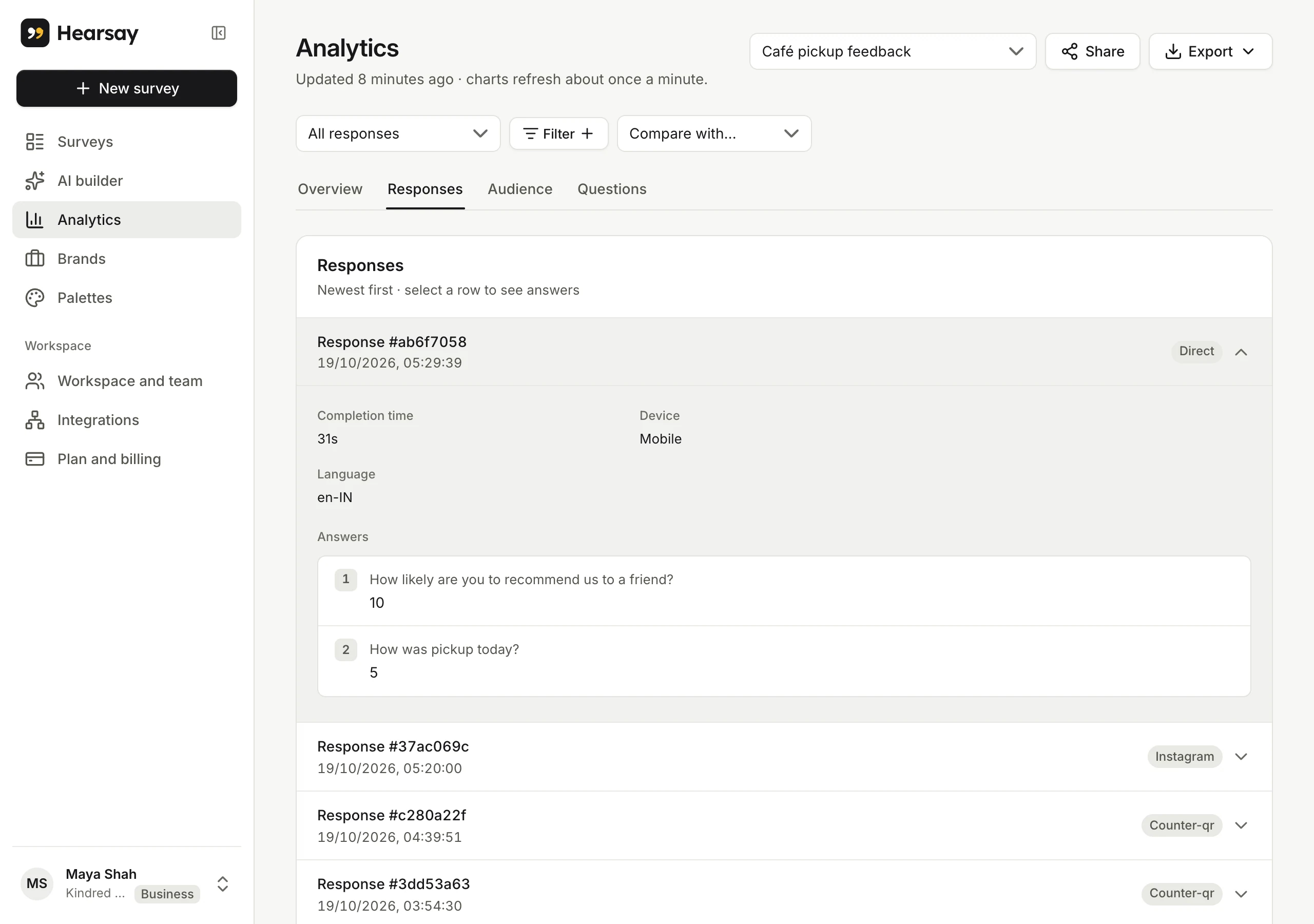
Each row shows the response's short ID, when it came in, its channel, and Flagged if it looked automated. Click a row to open it:
- Completion time, Device and Language.
- Reward code: the coupon it received, if any.
- Ending: which end screen it reached.
- The values of your link fields, personal ones included.
- Flagged, with the reasons, when it looked automated.
- Answers: every question as that customer saw it, with piped values filled in, and their answer.
Narrow the list
Filters apply here too: for example, show only detractors, only one channel, or only responses that got a coupon. See Filter results. If a filtered page comes back short, choose Keep looking to search further back.
Flagged responses
Hearsay flags responses that look automated, for example ones completed in under 3 seconds, or that failed the bot check on a coupon survey. They're kept, so you can review them. To leave them out of every chart, add the Flagged responses filter and pick Leave them out.
Contact details
Answers to Contact details questions appear here and in exports. They're never included in printed summaries or shared reports.