 Hearsay
 This walk-through takes a template from the gallery to a live survey with a coupon. You need a workspace; see Sign up and set up your workspace if you don't have one yet.
1. Pick a template
- In the sidebar, choose New survey, then From a template.
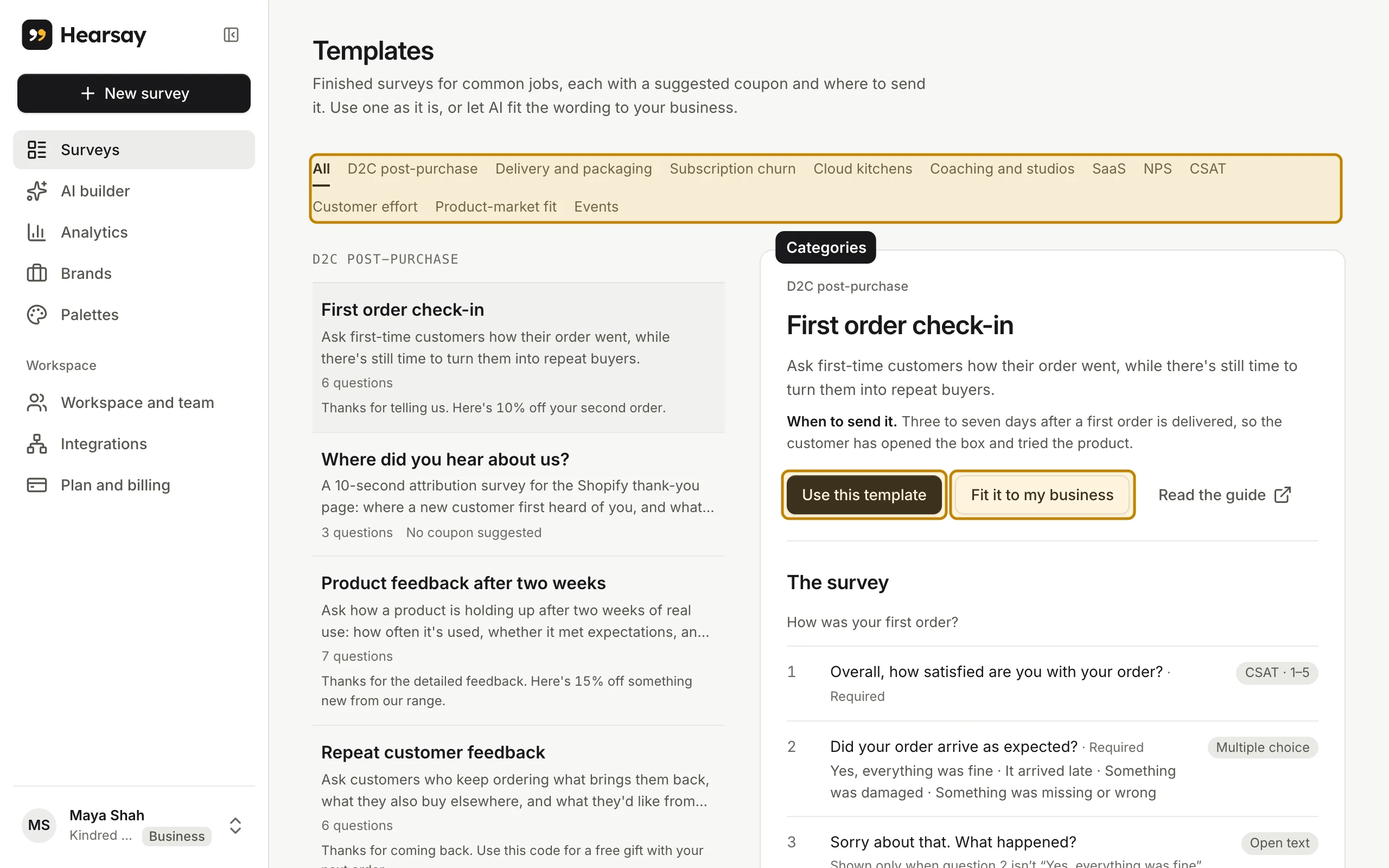
- Pick a category along the top, such as D2C post-purchase, and click a template to preview its questions, its suggested coupon and when to send it.
- Choose Use this template. To have AI reword it for your business first, choose Fit it to my business instead.
2. Check the questions
The survey opens in the editor, with a live preview on the right. Replace any placeholders in the wording, and change or add questions as you like. Your changes save automatically. See The survey editor.
3. Add a coupon
- Go back to Surveys, open the survey's More actions menu and choose Rewards and coupons.
- Turn on Reward respondents.
- Under New coupon set, keep Shared code, enter your Coupon code (for example THANKS10) and a Message, then choose Create coupon set.
See Thank customers with a coupon for unique codes, expiry dates and terms.
4. Publish
In the editor, choose Publish. If anything needs fixing first, the editor lists it under Fix before publishing. When it's live you'll see Your survey is live and a Copy link button.
5. Share the link
Copy the link into an email, a WhatsApp message or your order confirmation, or print a QR code for your counter. To see which place brings the most answers, give each place its own channel. See Survey links and channels and QR codes, table tents and counter cards.
6. Watch the answers
Open Analytics in the sidebar to see responses, completion rate and each question's results as they arrive. See Read your results.