 Hearsay
 Everyone in a workspace shares its surveys, responses and brands. The plan covers the whole team, so you never pay per person:
| Plan | Team members, the owner included |
|---|---|
| Free | Just you |
| Pro | Up to 10 |
| Business and Enterprise | Unlimited |
Pending invites count toward the limit until they're accepted or expire.
Invite someone
Owners and admins can invite people.
- In the sidebar, choose Workspace and team.
- Under Team members, choose Invite.
- Enter their Email and pick a Role: Viewer, Editor or Admin. The hint under it says what the role can do; see Roles and what each can do.
- Choose Create invite.
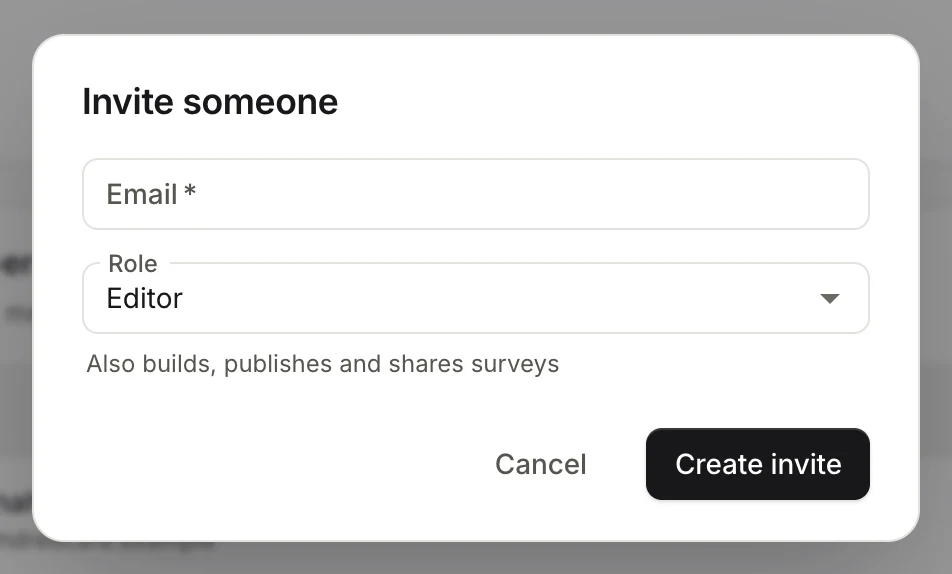
Hearsay emails them an invite and shows Invite ready with a link you can also send yourself. Choose Copy link to copy it. The link works for 7 days.
Only owners can invite admins. Admins can invite editors and viewers.
When the plan is full
On Free, Invite opens Invite your team with Pro instead, because Free is just you. On Pro, once 10 people and pending invites are in the workspace, it opens Make room for more team members. Owners and admins can choose See plans to upgrade. See Upgrade, switch or move to Free.
Pending invites
Owners and admins see pending invites at the bottom of Team members, marked Pending with the date each one expires. Choose Copy invite link next to one to copy its link again.
- To send it again, or change the role, invite the same email address again. It replaces the old invite, with a fresh 7 days, and doesn't take another place.
- To cancel it, there's no button: it stops working after 7 days. Until then it counts toward your plan's team members.
Accept an invite
- Open Accept invite in the email, or the link a teammate sent you.
- Choose Sign in to accept, and sign in with the email address the invite was sent to. New to Hearsay? Create your account with that address.
- Hearsay shows Joining the workspace…, then opens the workspace's surveys.
The workspace's plan covers you, so you're never charged. You don't need a workspace of your own, and you can join one even if you already have others.
If you signed up with an email address and password, verify your address first, with the link in the email we sent when you signed up.
If it doesn't work
| Message | What to do |
|---|---|
| This invite was sent to a different email address. Sign in with that address to accept it. | Sign out and sign in with the address the invite went to. |
| Verify your email address to accept this invite. Open the verification email we sent when you signed up, then sign out, sign back in and open the invite again. | Do what it says: open the link in the verification email, then sign out, sign back in and open the invite again. |
| This invite has expired. Ask whoever invited you for a new link. | Invites last 7 days. Ask them to invite you again. |
| This workspace’s plan has no room for another team member right now. Ask its owner to remove someone or upgrade. | The plan is full. Ask the owner. |
| This invite no longer exists. | An invite works once. If you've already joined, sign in and switch to that workspace. |
| You already belong to the most workspaces one person can. Leave one to join this workspace. | You can be in 20 workspaces. Leave one first. |
Change a role
Owners and admins can change roles. On Team members, pick the new role in the Role column. It's saved straight away.
Admins can change editors and viewers. Owners can change anyone except themselves. To make someone the owner, see Transfer ownership.
Remove someone
Owners and admins can remove people. On Team members, choose Remove team member (the bin icon) on their row. They're removed straight away, with no confirmation, and lose access to the workspace. Their surveys and responses stay.
Admins can remove editors and viewers. Owners can remove anyone. To bring someone back, invite them again.
Leave a workspace
- On Workspace and team, under Leave workspace, choose Leave [workspace name].
- Confirm with Leave workspace.
You lose access to its surveys and responses until someone invites you again. Hearsay opens another of your workspaces, or asks you to set one up if you have none.
The bin icon on your own row in Team members also leaves, without asking first.
The owner can't leave. Hand the workspace to someone else first; see Transfer ownership.
Paused team members
If a workspace moves to a plan that includes fewer team members than it has, for example when a Pro trial ends and it goes back to Free, the most recently joined people are paused. Nobody is removed and nothing is deleted.
- Paused people can't open the workspace. If it's their only one, Hearsay tells them they're paused until its owner upgrades, and offers to set up their own.
- On Team members, they're marked Paused, with Upgrade to bring them back.
- The owner is never paused.
They come back by themselves, longest-standing first, when there's room again: after an upgrade, or when you remove someone.