 Hearsay
 A webhook sends each response, and each coupon it earned, to an address you choose the moment it happens: a Zap, a Make scenario or your own server. From there it can go to a Google Sheet, your CRM or your email tool.
Webhooks are on Business (10 webhooks) and Enterprise (50). Only owners and admins can see and manage them, because they send customer answers out of Hearsay.
Add a webhook
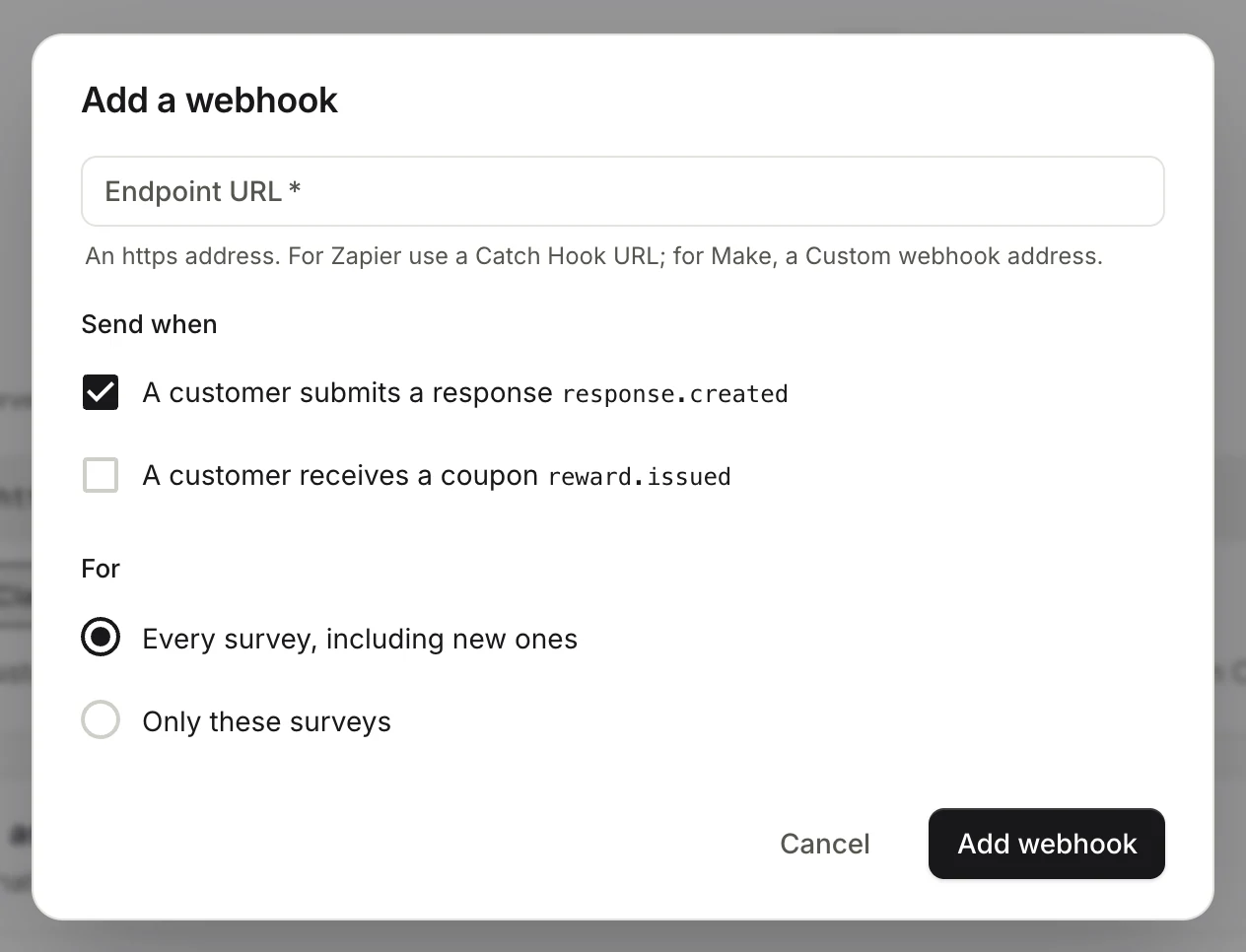
- Go to Integrations and choose Add webhook.
- Paste the Endpoint URL. It must start with
https://. For Zapier, use a Catch Hook URL; for Make, a Custom webhook address. See Connect Zapier or Make. - Under Send when, tick one or both events:
- A customer submits a response (
response.created) - A customer receives a coupon (
reward.issued)
- A customer submits a response (
- Under For, choose Every survey, including new ones, or Only these surveys and pick them.
- Choose Add webhook.
Hearsay then shows Your signing secret. Copy it now: it's only shown once. Your server uses it to check that each delivery really came from Hearsay. See Verify the signature.
Manage your webhooks
Each webhook on the Integrations page shows its address, its events, which surveys it covers, the last four characters of its secret, and when it last delivered. On or Off shows whether it's sending.
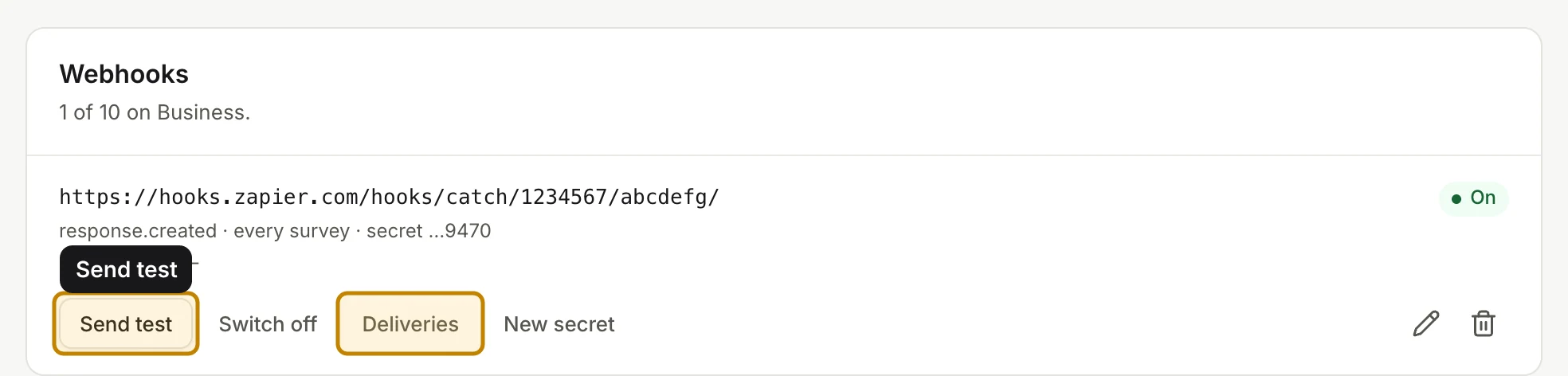
- Send test posts a test event straight away, so you can check your endpoint or let Zapier and Make learn your survey's questions. Hearsay shows Test delivered with the status your server answered, or Test failed with the reason.
- Switch off stops sending without deleting the webhook; Switch on starts it again.
- Deliveries lists every delivery from the last 7 days, with the event, the attempt number, your server's answer and how long it took.
- New secret replaces the signing secret and shows the new one once. The old secret stops working straight away, so update your server at the same time.
- The pencil icon edits the address, events and surveys.
- The bin icon deletes the webhook. Hearsay stops sending at once and its delivery log goes too. This can't be undone.
When deliveries fail
Your server must answer with a 2xx status within 10 seconds. If it doesn't, Hearsay tries again, waiting longer each time, for 5 attempts in all.
If 25 deliveries in a row fail, Hearsay switches the webhook off, the Integrations page says why, and the workspace's owners and admins get an email. Fix the endpoint, then choose Switch on. One delivery that gets through resets the count.
For the exact rules, see Retries and repeats.
If you move to a plan without webhooks
Webhooks stop sending, but stay listed under Integrations with a note that they send nothing. You can delete them there, or move back to Business to start sending again. See Upgrade, switch or move to Free.