 Hearsay
 On the Analytics page, choose Export. Exports follow your current filter or segment: the menu says Filtered: N responses when one is applied.
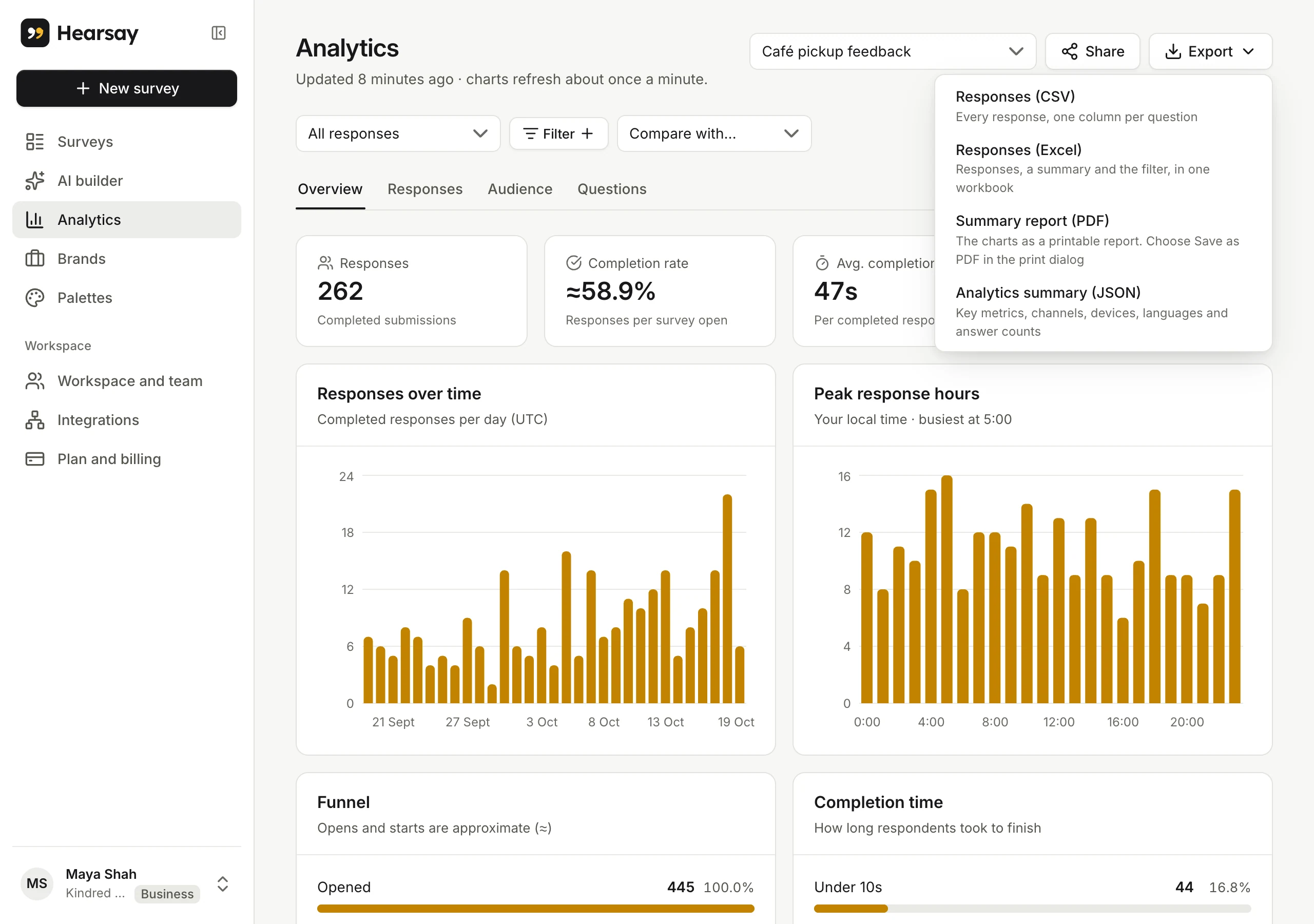
| Export | What you get | Plans |
|---|---|---|
| Responses (CSV) | Every response, one column per question | Pro and above |
| Responses (Excel) | Responses, a summary sheet and the filter used, in one workbook | Pro and above |
| Summary report (PDF) | The charts as a printable report | Every plan |
| Analytics summary (JSON) | Key numbers, channels, devices, languages and answer counts | Every plan |
CSV and Excel
Large exports run in the background: Hearsay shows Preparing your export… and then Exporting… N responses so far, and the download starts by itself. The download link works for 15 minutes.
Each row is one response, with:
- Response ID, Submitted at (UTC), Survey version, Source (channel), Reference, Device, Language, Completion time (s), Flagged, Reward code, Ending, Embed and Page URL;
- a Hidden: column for each link field, personal ones included;
- one column per question: per row for matrix grids, per field for contact details, and two for file uploads (file names, and links to download them; the links need you to be signed in);
- the order options and questions were shown in, for anything shuffled.
Ranking answers are written as First > Second > Third. Cells that start with =, +, - or @ get an apostrophe in front, so spreadsheets don't run them as formulas.
The Excel workbook adds a Summary sheet (counts, shares, averages and NPS) and a Filter sheet describing the filter. Excel can't hold more than a million rows; above that, use CSV.
Only editors and above can export. See Roles and what each can do.
PDF summary
Summary report (PDF) opens a printable page in a new tab and starts your browser's print dialog: choose Save as PDF. It includes the key numbers, responses over time and every question's chart.
It leaves out written answers, contact details and uploaded files, so it's safe to pass around.