 Hearsay
 Every published survey has one link, like https://hearsay.co.in/s/SURVEY_ID. Send it anywhere: email, WhatsApp, Instagram, a receipt, your order confirmation.
Copy the link
- On the Surveys page, open the survey's More actions menu and choose Share and channels, or Copy link.
- Right after publishing, use Copy link on the Your survey is live screen.
A draft has no link yet: publish it first.
Channels: see where responses come from
A channel is a copy of the link with a name, like ?source=instagram. Responses through it are counted separately, so you can tell whether your counter QR code or your newsletter brings more answers.
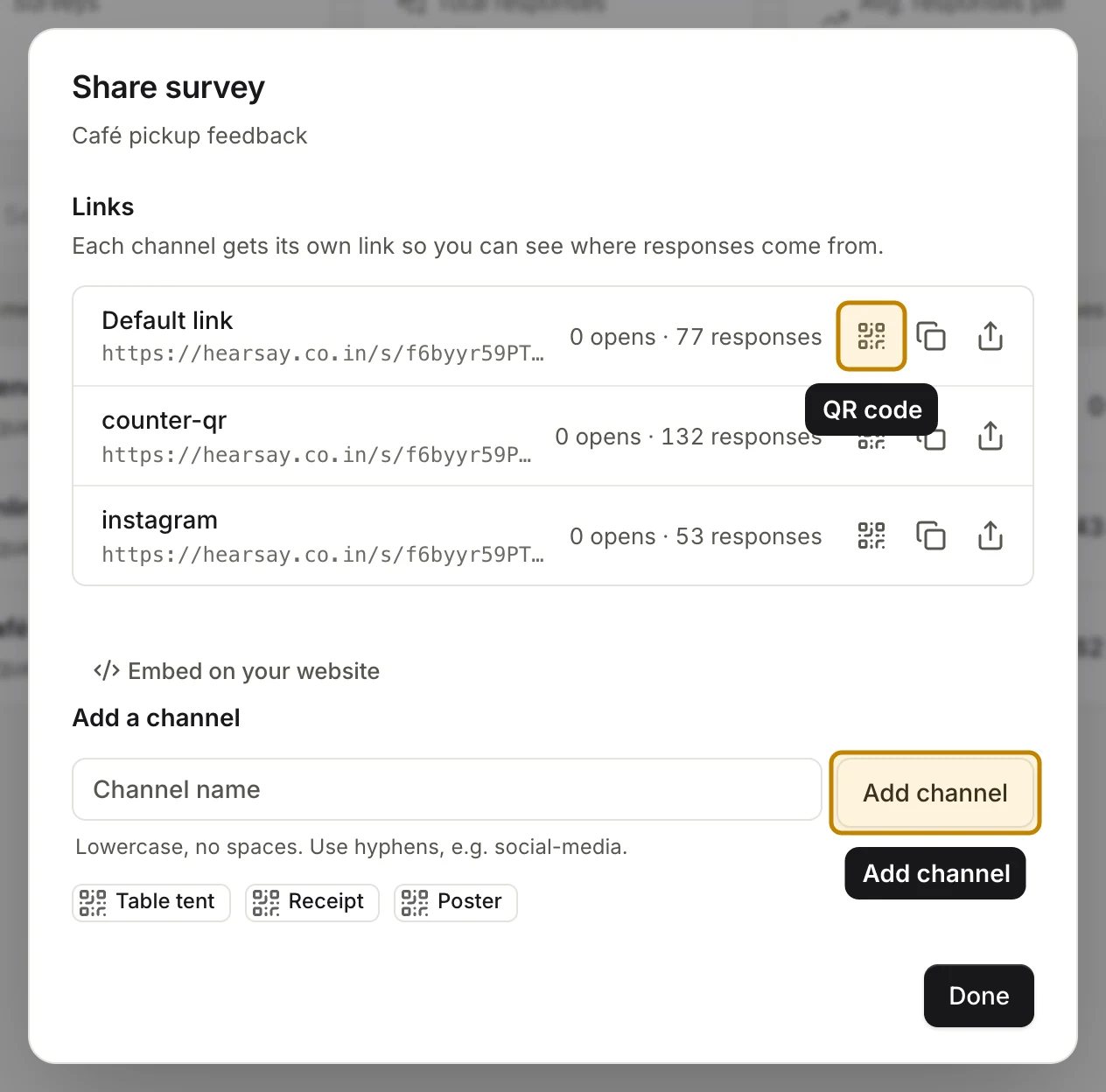
- Open Share and channels from the survey's More actions menu.
- Under Add a channel, type a Channel name, such as
newsletter, or click a preset: Counter QR, Table tent, Receipt or Poster. - Choose Add channel.
Each channel gets its own row under Links, with its opens and responses so far, and QR code, Copy link and Share buttons. Default link is the plain link.
Channel names use lowercase letters, numbers and hyphens (social-media, not Social Media), up to 40 characters. default, other and embed are taken.
See results by channel
On the Analytics page, the Traffic channels card shows opens, completions and conversion for each channel, and you can filter any chart by Channel. See Read your results.
More ways to share
- QR codes, table tents and counter cards for in-person customers.
- Embed a survey on your website as a form, popup, slide-in or feedback tab.
- Personalised links that carry an order number or name for each customer.
- Ask Shopify customers after they buy.