 Hearsay
 On the Analytics page, choose Filter and pick what to filter by. Each filter becomes a chip above the charts: click it to change it, or Clear to remove them all. Every tab, the numbers and exports follow the filter.
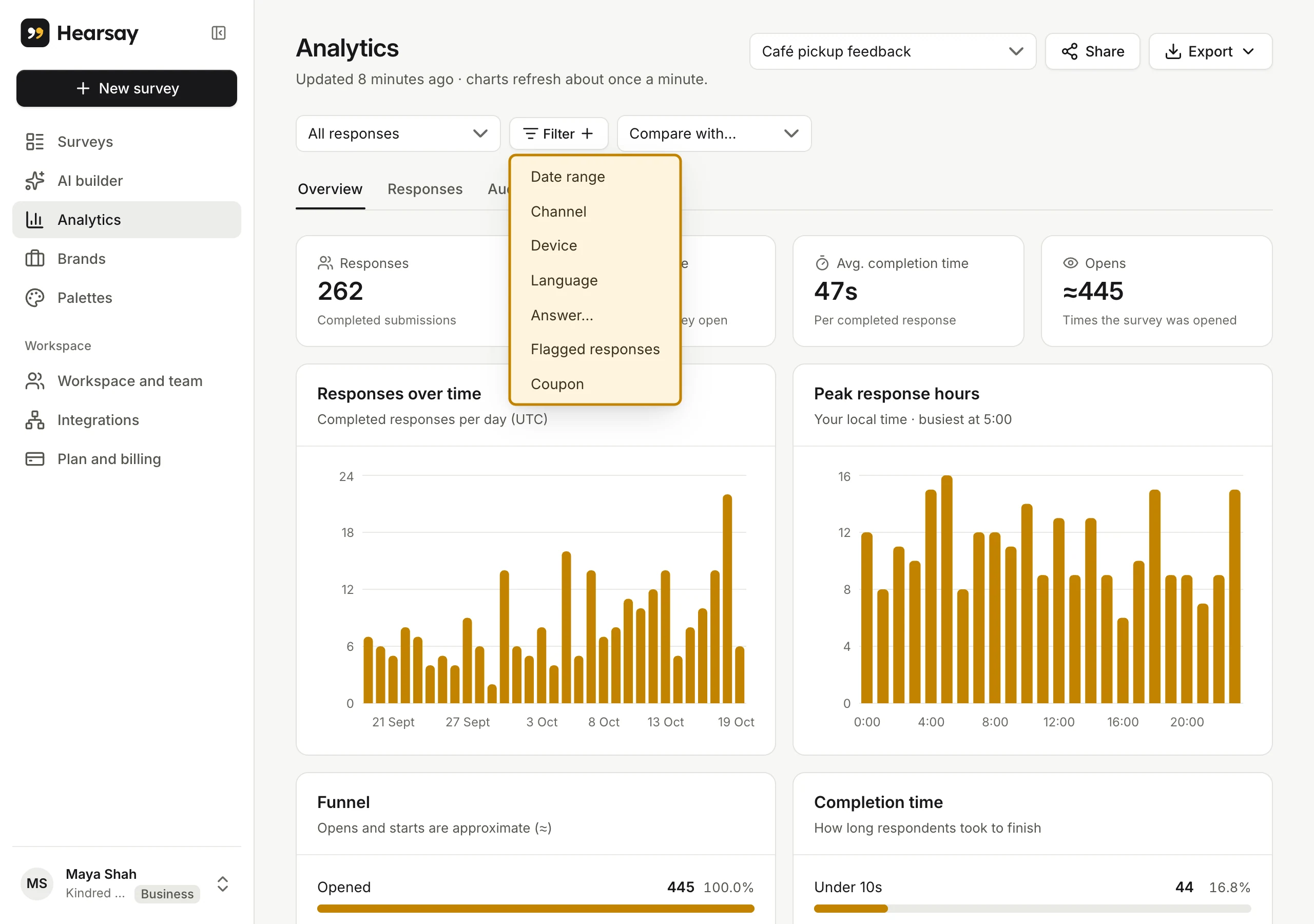
What you can filter by
- Date range: Today, 7 days, 30 days, This month, or your own From and To.
- Channel: where the response came from.
- Device: Mobile, Tablet, Desktop or Unknown.
- Language: the customer's browser language.
- Answer…: pick a Question and a Rule. The rules depend on the question:
- choices: is any of, is none of, has all of;
- numbers and scales: is between;
- NPS and CSAT: is in the band (Promoters, Passives, Detractors; or Satisfied, Neutral, Dissatisfied);
- ranking: is ranked at the top;
- matrix: has the answer;
- text: contains (not case-sensitive);
- any question: was answered or was not answered.
- Ending: which end screen people reached.
- Page reached: how far into a multi-page survey people got.
- Embed and Page URL: for surveys on your website.
- Link field…: is, contains or has a value. Fields marked personal can't be filtered on.
- Survey version: compare before and after you changed the survey.
- Flagged responses: Leave them out or Only flagged.
- Coupon: Coupon issued, Coupon withheld or No coupon.
Options that don't apply to the survey (like Ending without end screens) don't appear.
How filters combine
Different filters must all match. Several values inside one filter mean any of them: Channel is instagram or counter-qr. Page reached with several pages means all of them.
The filter is part of the page address, so you can bookmark it or send the link to a teammate.
On the Free plan
Free includes the Date range and Channel filters. Pro and above include all of them. See Plans and what's included.
Large surveys
On surveys with many responses, Hearsay shows Scanned x of y responses while it works through them. If you use the same filter often, save it as a segment: segments stay up to date in the background and open instantly. See Save segments and compare groups.