 Hearsay
 A survey is a Draft (only your team can see it) until you publish it. Publishing gives it a public link.
Preview
- The Live preview in the editor lets you answer the survey to test it; nothing is saved.
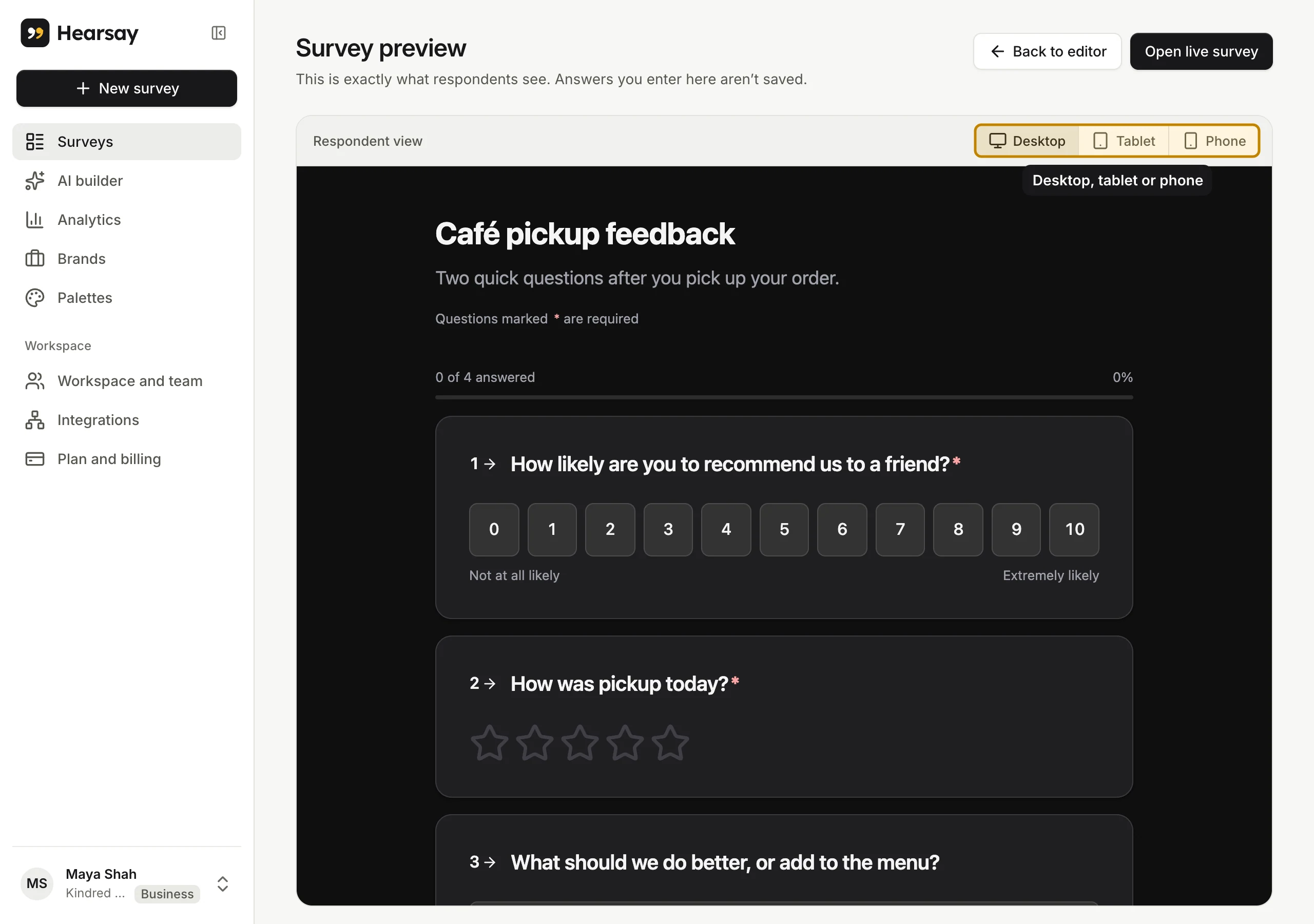
- Preview in the editor header (or in a survey's More actions menu) opens it on its own page, exactly as customers see it. Open live survey there opens the real link once it's published.
Publish
- In the editor, choose Publish.
- You'll see Your survey is live, with Copy link, Open survey and Share.
From the same screen you can Add channel to track where responses come from, Get embed code for your website, or build Personalised links. See Survey links and channels.
You can also publish from the Surveys page: open the survey's More actions menu and choose Publish.
Fix before publishing
If something would break the survey, Hearsay lists it under Fix before publishing and won't publish until it's fixed. For example:
- Add a title. or Add at least one question.
- Question 3 needs text. or Question 4 needs options.
- Page 2 has no questions.
- Page 3 jumps back to page 1. Jumps can only go forward.
- Question 5 depends on question 6, which comes after it.
- A link field or piped answer that doesn't exist, or that comes from the same page.
- A feature your plan doesn't include, such as Redirects after completion are available on Pro and above.
If your workspace has used all of this month's responses, publishing waits until the 1st or until you upgrade. See Monthly limits.
Change a live survey
Edit it in the editor as usual. Your changes are saved but customers keep seeing the previous version until you choose Publish changes. Then you'll see Your changes are live: customers see the new version and your links stay the same.
Each publish creates a new version of the survey. Results keep every response, and you can filter by Survey version if you need to compare before and after a change. See Filter results.