 Hearsay
 A coupon on the thank-you screen gets more people to answer, and brings them back to spend it. Every plan includes coupons.
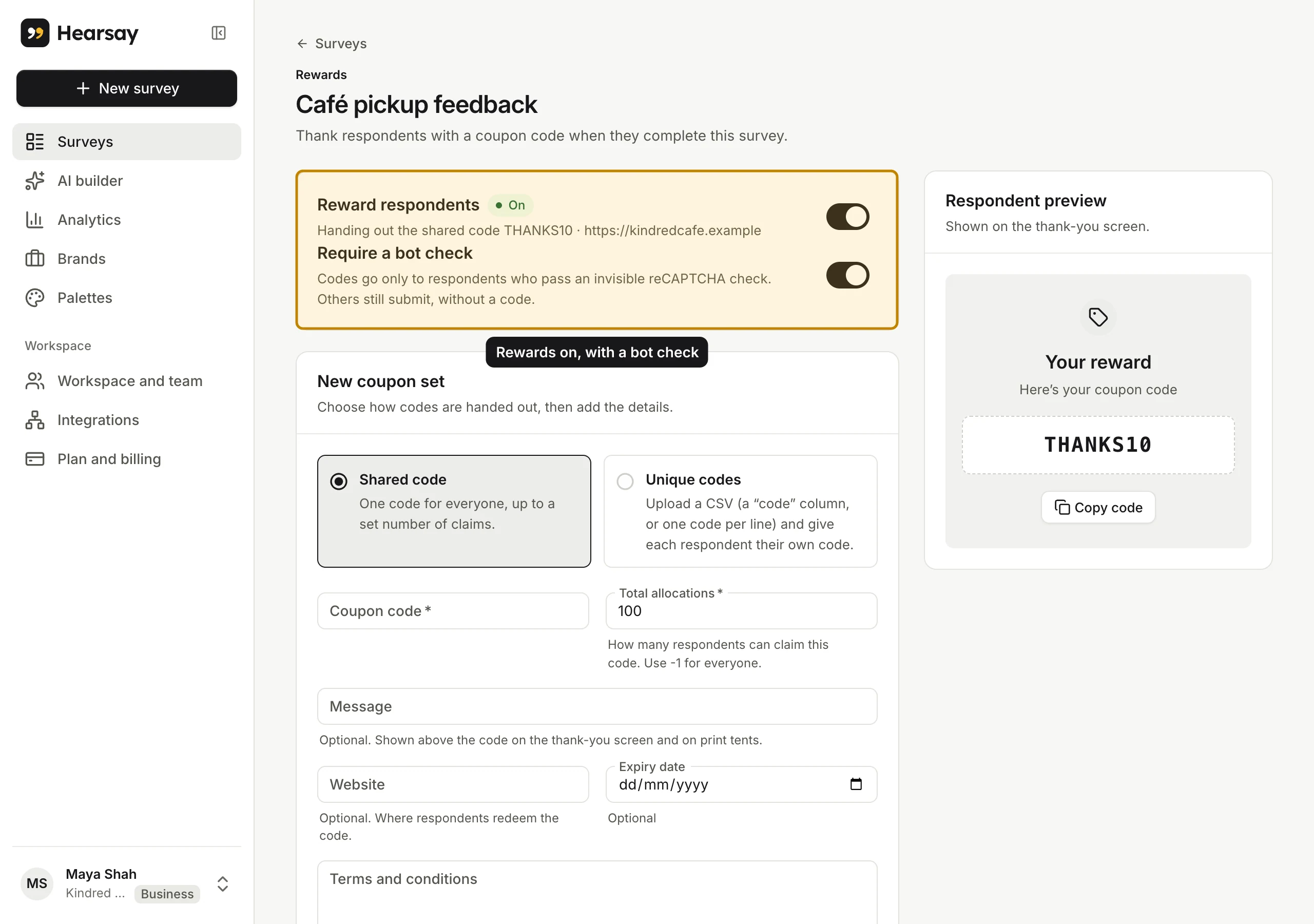
Turn on rewards
- On the Surveys page, open the survey's More actions menu and choose Rewards and coupons.
- Turn on Reward respondents.
- Leave Require a bot check on unless you have a reason not to. See Coupon limits, bot checks and running out.
Create a coupon set
Under New coupon set, choose how codes are given out.
One shared code
Everyone gets the same code, up to a number of claims.
- Choose Shared code.
- Enter the Coupon code, for example
THANKS10. - Set Total allocations: how many people can receive it. Use
-1for no limit.
A unique code for each customer
Each customer gets their own code, so a code can't be passed around.
- Choose Unique codes.
- Choose Upload a CSV of codes: a file with a
codecolumn, or one code per line. Codes can be up to 64 characters with no spaces, with no repeats, up to 100,000 in a set. - Hearsay checks the file and shows Loaded N codes, or lists the lines with problems.
Details for both
- Message: shown above the code, such as "Thanks for the feedback! Here's 10% off your next order." It's also the headline on printed table tents.
- Website: adds a Use your code button.
- Expiry date and Terms and conditions.
These can start from your brand's Default reward. See Brands, palettes and logos.
Choose Create coupon set. The Respondent preview on the right shows the reward as customers will see it.
Manage coupon sets
The Coupon sets table shows each set's status (Active, Paused or Exhausted), how many codes are left, and when you created it. You can Pause, Resume or Delete a set.
Only one set is active at a time: creating or resuming a set pauses the one before it.
Only some people get a coupon
To give a coupon only to some people, for example customers but not passers-by, use end screens: turn off Give the coupon on this screen on the end screens that shouldn't give one, and send people there with page logic. See Pages, logic and end screens.
Where you see coupons
- Each response shows the Reward code it received. Filter by Coupon to see who got one.
- Exports have a Reward code column.
- Webhooks can send a
reward.issuedevent with the code. See Webhooks.
Hearsay shows the codes; you honour them in your shop or checkout.